This guide compares the top HDMI Edid Emulator Passthroughs for stable video signals, KVM setups, and headless computing across various devices and resolutions.
As an Amazon Associate we earn from qualifying purchases. We may earn a commission when you buy through links on this page, at no additional cost to you. Read our affiliate disclosure.As an Amazon Associate we earn from qualifying purchases.Purchases through our links may earn us a commission, at no extra cost to you. Read our affiliate disclosure.
Finding the right HDMI Edid Emulator Passthrough ensures your devices recognize displays correctly. These adapters maintain signal stability when screens change or disconnect. Quality models prevent desktop rearrangement and support high resolutions like 4K.
We compared ten real products based on compatibility, resolution support, and ease of use. Each item serves different needs from basic headless setups to complex AV systems. Our list highlights key features that matter most for reliable performance.
Each pick shows specific strengths like bidirectional support or HDCP handling. Prices vary but check current deals before buying. These tools solve common connection issues for professionals and enthusiasts using switches or splitters effectively.
Top 3 Picks for Best HDMI Edid Emulator Passthroughs
Best Budget
HDMI Edid Emulator Passthrough 3rd Generrtion Premium Aluminum Eliminated Emulator Adapter Work with Mac Thunderbolt to HDMI Switches/Extender/AV Receiver/Video Splitters 1080-3840×2160@60H
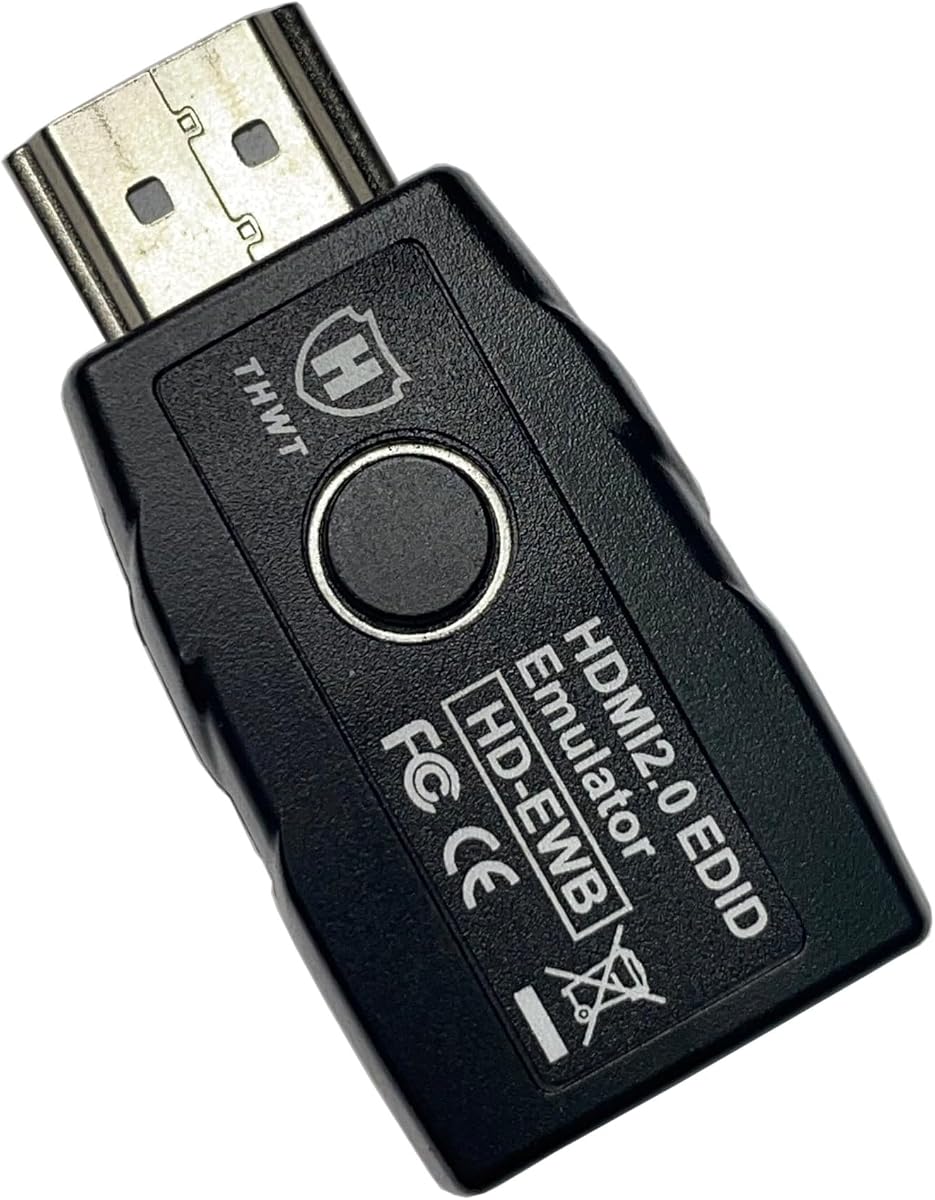
HDMI 2.1 4K EDID Emulator PRO (Model: 4K-EW2), Support SCDC and Exact EDID Copy and Emulation, HDCP Pass-Through (not Bypass or Remove), 14 Pre-Set EDID Values with 2.1 Channel Audio
Top 10 Best HDMI Edid Emulator Passthroughs in 2026 Compared
This table provides a quick overview of each model. Key specifications and compatibility details help you choose the right adapter for your specific setup needs efficiently.
HDMI EDID Emulator, Passthrough Display Adapter, Default Resolution Dummy Plug, Headless Ghost for HDMI Switches, Extenders, AV Receivers, Video Splitters (8K30Hz-4K120Hz)
8K30Hz support
4K120Hz capable
Multi-device ready
Simple setup process
This HDMI EDID Emulator adapter earns top marks for stability and resolution support. It ensures source devices keep outputting signals even without a display connected. Users get consistent video and audio quality across various setups.
Pros
Stable video output
Wide compatibility range
No software required
Easy installation steps
Cons
Limited to HDMI only
No external power needed
We may earn a commission when you buy through this link, at no additional cost to you.
It handles high resolutions like 8K30Hz and 4K120Hz well. Multi-device environments benefit from its ability to match EDID information accurately. This prevents errors when switching between different displays or AV equipment easily.
Trade-offs include lack of external power options. The design relies on source power which limits some setups. Still, its plug-and-play nature makes deployment quick for most users without extra effort.
Best for home theaters and control rooms needing reliable signal flow. Professionals managing multiple screens will appreciate its stability. Check compatibility with your specific source devices before finalizing the purchase decision.
Ensures consistent audio and video output
This adapter maintains signal quality even when displays cycle on or off. It prevents blank screens during power negotiations. Handshakes happen faster for smoother connections without noticeable delays.
Works well in complex AV systems
Ideal for receivers and splitters needing stable EDID data. It resolves mismatches between devices that cause image issues. Each component recognizes signals correctly for optimal performance.
This aluminum adapter targets Mac users needing reliable HDMI EDID emulation. It connects seamlessly to Thunderbolt ports for smooth operation. The build quality offers durability at a competitive price point for most budgets.
Pros
Durable metal casing
Mac specific design
Simple connection process
Affordable pricing option
Cons
Limited to 4K resolution
Basic feature set
We may earn a commission when you buy through this link, at no additional cost to you.
It supports resolutions up to 3840×2160@60Hz effectively. No drivers are needed for immediate use with switches or receivers. The sleek design fits well in modern office or home setups without bulk.
It lacks advanced features like HDCP customization or high refresh rates beyond 60Hz. Users needing 8K might find it limiting. However, for standard 4K workflows, it performs well without extra costs or complexity.
Best for Mac owners using KVMs or splitters. It keeps desktop settings intact when switching sources. Verify your Mac model compatibility before purchasing to ensure perfect fit with your setup.
Modern and durable aluminum build
Crafted with premium metal for lasting use. The sleek look matches high-end tech setups. Durability ensures it withstands frequent connection changes over time.
Eliminates manual EDID settings
Connects directly to displays without configuration. It automatically handles handshake requirements. This saves time for users who want quick setup without technical steps.
This PRO model offers top-tier features for serious AV setups. It supports HDMI 2.1 standards for future-proofing your connections. Users can copy exact EDID data from monitors to emulate perfectly with high accuracy.
Pros
Advanced HDMI 2.1
Exact EDID copying
Many preset options
HDCP compliant
Cons
Higher price point
No 8K FRL support
We may earn a commission when you buy through this link, at no additional cost to you.
Fourteen internal presets allow quick resolution changes via a knob. SCDC handshaking ensures stable links with modern sources. HDCP pass-through maintains compliance without bypassing security protocols on any device.
It does not support 8K via FRL handshaking. The price is higher than basic adapters too. Still, professionals needing precision and HDMI 2.1 compatibility will find these trade-offs acceptable for performance.
Ideal for advanced home theaters or production setups. Those needing exact EDID copying should choose this model. Check your source devices requirements before investing in this premium solution.
True EDID copying function
Stores external monitor data for accurate simulation. Video and audio formats get preserved. This allows seamless emulation of specific display environments accurately.
Advanced SCDC support
Facilitates 10x and 40x frequency control. Hot-plugging works without issues. This ensures reliable links even with frequent connection changes.
This adapter focuses on keeping systems stable without display connections. It passes signals bidirectionally which adds flexibility for setups. Fixed EDID prevents Windows from rearranging desktops when cables loosen or screens disconnect.
Pros
No drivers required
Hot swap capable
Simple setup
Keeps settings fixed
Cons
Lower user ratings
No HDCP support
We may earn a commission when you buy through this link, at no additional cost to you.
Hot swap support allows changes without shutting down systems. Low power usage means no extra power supply needed. It works with Mac mini or Pi devices as virtual monitors for remote access tasks.
Lack of HDCP support limits use with protected content. User ratings are moderate compared to others. However, for basic remote desktop or non-HDCP needs, it offers functional stability at a low cost.
Best for users needing a cheap virtual monitor tool. Check HDCP requirements for your content sources. If HDCP is needed, consider models with explicit pass-through support instead.
Prevents desktop rearrangement issues
Fixes current settings even when display disconnects. Systems recognize a monitor remains attached. This keeps workspaces intact during switching or remote sessions.
Simple plug and play setup
No software or drivers needed at all. Just plug into KVM inline with HDMI. This speeds up deployment for quick testing or use.
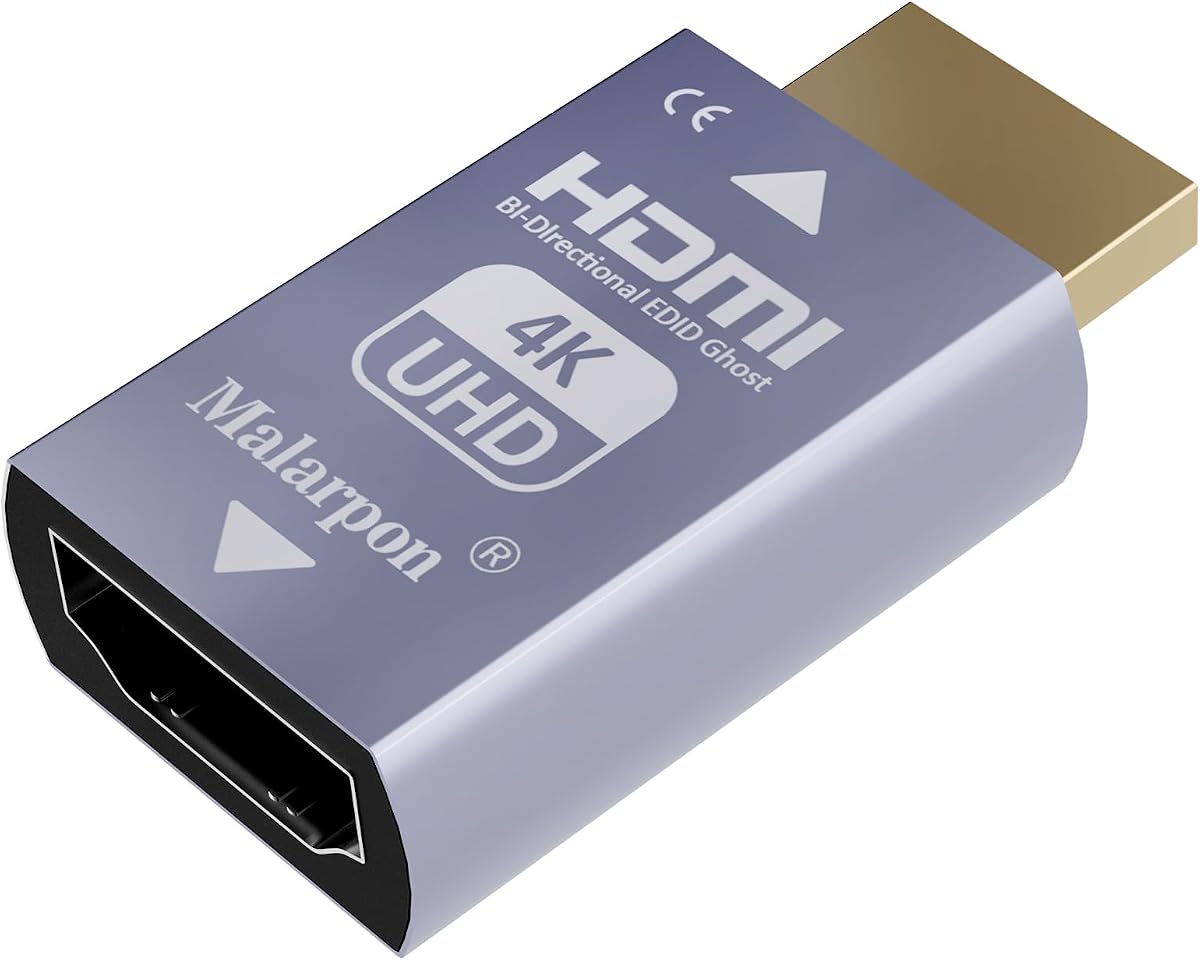
This adapter supports HDR signals for better visual quality. It handles resolutions up to 4096×2160@60Hz well. Bidirectional transmission means wiring direction does not limit installation options for your setup easily.
Pros
HDR signal support
KVM series ready
Auto detects direction
No external power
Cons
Basic build quality
Average performance
We may earn a commission when you buy through this link, at no additional cost to you.
Built for KVM switches to lock EDID during source changes. Parameters stay intact even with frequent switching. Hot swapping works smoothly without losing connection or resetting display settings unexpectedly.
Performance varies depending on specific setups. Some users might experience handshake issues. Still, it provides solid headless operation with lossless signal transmission for general office wiring applications.
Good for setups needing HDR with KVMs. Verify resolution requirements match your display. If HDCP is critical, look for models with explicit HDCP pass-through features instead.
Supports high resolution and refresh
Handles 4K and 1080p@120Hz well. Compatible with Mac mini and Raspberry Pi. Ensures stable connections for various computing devices.
Headless design for reliability
Runs reliably for extended periods without monitor. Zero-latency transmission preserves signal quality. Ideal for remote access tasks or server setups.
This model supports exact EDID copying for better accuracy. It passes HDCP keys which is essential for protected content. One button switch toggles between internal and external EDID modes easily.
Pros
Exact EDID copying
HDCP pass-through
2.1CH audio preset
Bi-directional design
Cons
Not HDMI 2.1
SCDC handshake issues
We may earn a commission when you buy through this link, at no additional cost to you.
Bi-directional design detects input output links automatically. Headless operation means no monitor needed for use. Presets include 1080p@60Hz and 4K@60Hz with audio support for testing needs.
It lacks full HDMI 2.1 SCDC functionality. Signal interruptions may occur at high resolutions. For HDMI 2.0 devices, it offers useful features like copying and pass-through at a reasonable cost.
Best for users needing HDCP pass-through. Test with your specific monitor before use. If HDMI 2.1 is needed, consider a newer PRO model instead.
Prevents EDID loss issues
Supports copying when connecting splitters or switchers. Rare cases may fail with old screens. Proper setup ensures successful EDID emulation results.
HDCP pass-through compliant
Reads display HDCP keys correctly. Prevents blank screens due to missing keys. Ensures compatibility with protected content sources.
This adapter delivers stable links with HDCP pass-through support. It works well with KVM switches without resetting display parameters. Bidirectional signal transmission offers flexibility in wiring configurations.
Pros
High user rating
HDCP supported
KVM compatible
No external power
Cons
Limited resolution max
Basic feature set
We may earn a commission when you buy through this link, at no additional cost to you.
Max resolution is 4K@60Hz which suits most workflows. Hot swapping works without issues during use. Built for reliable extended periods in office audio visual applications effectively.
It does not support resolutions beyond 4K. If you need 8K, consider a different model. However, for standard 4K setups needing HDCP, it performs well with few complaints.
Great for KVM setups requiring stable HDCP links. Users looking for 4K@60Hz will find it suitable. Check your maximum resolution needs before purchasing this model.
Prevents desktop rearrangement issues
Keeps settings intact when cables loosen or disconnects. System remains recognize monitor is connected. Avoids desktop changes during multi-monitor setups.
Compatible with various adapters
Works with DisplayPort and Type-C to HDMI. Maintains EDID active for remote access. Supports diverse computing devices easily.
This adapter helps maintain active EDID for remote access. It passes signals bidirectionally which is useful for flexible setups. Users report fixes for desktop rearrangement issues when switching sources.
Pros
Fixes desktop rearrangement
Works with DP to HDMI
Remote access support
Consistent EDID
Cons
Limited resolution options
Standard feature set
We may earn a commission when you buy through this link, at no additional cost to you.
Works with DP to HDMI adapters flawlessly. Keeps EDID consistent during power cycles or renegotiations. It prevents image distortion that might occur with incorrect settings.
Resolution tops at 3840×2160@59Hz which is fine for standard displays. It does not support higher refresh rates. Still, it is reliable for keeping Windows recognizing monitors correctly.
Best for remote desktop setups using Mac mini or similar. Ensure it fits your adapter needs. Check resolution requirements before purchasing.
Keeps EDID of monitor active
Enables remote access keeping active EDID. Works with various mini PCs. Ensures device recognition without a real monitor.
Avoids image distortion
Plugging between switch and laptop fixes EDID. Users report getting options back in Windows. No more distorted images reported.
This manager solves EDID incompatibility between multiple devices. It supports signal amplification for high quality video. CEC pass-through ensures other functions work without issues in combined systems.
Pros
Eight preset types
Repeater and retimer
CEC support
7×24 work
Cons
Higher price point
No HDMI 2.1
We may earn a commission when you buy through this link, at no additional cost to you.
Eight preset types allow quick setup without copying. Pure hardware architecture means no signal loss. Low power design supports continuous operation for extended periods easily.
It is priced higher than basic models. However, professional support and warranty make it reliable. Ideal for complex commercial displays or digital signage setups needing consistency.
Best for environments needing repeater functionality. Professional support helps with setup. Ensure HDMI 2.0 fits your needs before buying.
Amplifies and equalizes HDMI signals
Provides high quality audio video output. Makes cascading possible with multiple layers. Ensures reliable transmission across devices.
CEC pass-through support
Does not affect operation of other functions. Allows control signals to pass through. Maintains system combination integrity.
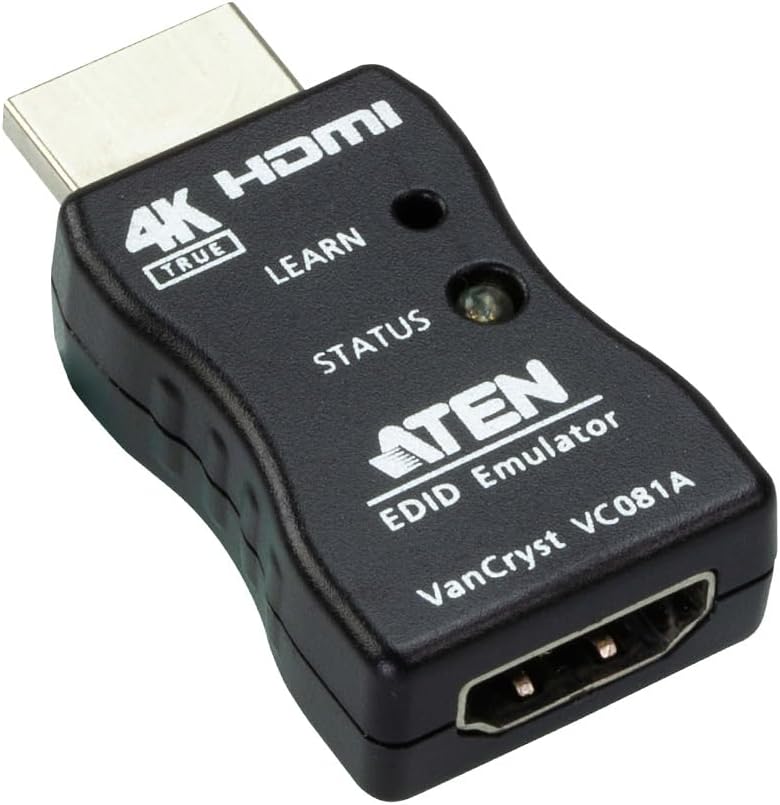
ATEN is a well-known brand offering solid 4K support. It manages EDID communication between connected devices effectively. Deep Color and CEC ensure compliance with modern HDMI standards easily.
Pros
True 4K support
Deep Color
CEC compliance
Compact and lightweight
Cons
Lower user rating
Higher price
We may earn a commission when you buy through this link, at no additional cost to you.
Learning EDID via pushbutton simplifies setup. The design is compact and lightweight for portable needs. Users get superior video quality up to 3840 x 2160 @ 60Hz.
Ratings are lower than other options which suggests some quirks. Price is higher compared to generic models. But for brand reliability and specific HDMI compliance features, it stands out.
Best for corporate setups valuing brand support. Check compatibility with your display models. Ensure price and features justify your specific needs.
Effectively learns and saves EDID
Pushbutton relays to video source simply. Saves connected display data accurately. Ensures source device recognizes display capabilities.
Superior video quality support
Up to 3840 x 2160 @ 60Hz 4:4:4. True 4K capability ensures crisp output. Ideal for high fidelity display needs.
We may earn a commission when you buy through this link, at no additional cost to you.
Buying Guide – How to Choose the Best HDMI Edid Emulator Passthroughs
Choosing the right adapter requires understanding your setup. This guide breaks down key factors to consider for reliable performance across different scenarios.
Resolution and Refresh Rate Support
Check the max resolution your setup needs. Some adapters handle 4K@60Hz while others offer 8K or 4K@120Hz. Ensure the model supports your monitor specs to avoid signal loss or downscaling.
Look for specific refresh rate claims to match your workflow needs.
HDCP Pass-Through Capability
HDCP is needed for protected content like streaming services. Adapters without it may block video or lower resolution. Verify if pass-through is supported if you use premium video sources.
This ensures compliant signal flow without blank screens.
KVM and Switch Compatibility
For KVM switches, ensure the emulator locks EDID during source changes. This prevents display settings from resetting every time you switch inputs. It is essential for smooth operation in shared setups.
Choose models built specifically for KVM series connections.
Bidirectional vs Directional Design
Bidirectional adapters work with input or output on either end. This offers more flexibility when integrating into existing cabling setups. Confirm direction support if your install has cable constraints.
Flexible wiring saves effort and extra adapters.
EDID Copy Functionality
Advanced models allow copying EDID from a physical monitor to the emulator. This guarantees perfect signal negotiation with source devices. Useful when exact display specs must be replicated remotely.
Look for internal presets or copy buttons for ease.
Build Quality and Durability
Aluminum housings tend to dissipate heat better than plastic. Check if external power is needed or if it runs off source power. Better build ensures stability for 24/7 use.
Robust materials prevent issues in commercial setups.
Audio Format Support
Some adapters support multichannel audio like 5.1 or 7.1. Ensure the EDID includes required audio formats for your system. Lack of support can downgrade audio to stereo unexpectedly.
Match audio specs to your receiver requirements.
Brand Support and Warranty
Known brands often offer better technical support and warranty. Check return policies if the adapter does not work with your specific gear. Support helps resolve handshake issues quickly.
Trustworthy brands simplify troubleshooting for complex setups.
How to Use and Care for Your HDMI Edid Emulator Passthroughs
Connect the emulator between your source device and display or switch. Ensure HDMI cables are fully inserted on both ends. The LED light if present should indicate active signal flow.
Turn on your source device and display in sequence. Let them handshake to establish the correct EDID. Once stable, switch your inputs normally to enjoy the signal.
Avoid bending cables sharply near the adapter to prevent damage. Keep it in a ventilated space to avoid overheating. Clean dust gently with a dry cloth to maintain airflow.
Frequently Asked Questions
What does an HDMI Edid Emulator do?
It simulates a display to ensure source devices output signals correctly. It prevents desktop rearrangement when monitors disconnect. This is vital for KVM setups or remote access systems.
Do I need to install drivers?
No, most models are plug-and-play without extra software. Just connect the adapter to your HDMI ports. It works automatically once the devices are powered on.
Can I use this with Mac computers?
Many adapters support Mac Thunderbolt or Type-C with HDMI adapters. Ensure compatibility with your specific model before buying. Some designs target Mac users with aluminum builds.
Will it support 8K resolution?
Not all models support 8K. Check specific resolution ratings before purchase. Most focus on 4K@60Hz or 4K@120Hz which is common for current setups.
Why do I need HDCP pass-through?
HDCP protects premium content streams. Without pass-through, video may blank out on compatible sources. It ensures compliant signal flow without extra errors or restrictions.
Is an external power supply needed?
Most adapters draw power from the HDMI source device. External power is only needed for active signal boosters. Check specs to confirm power requirements.
Can I use it with a KVM switch?
Yes, many are built specifically for KVM compatibility. They lock EDID settings to prevent rearranging during switching. This makes input changes smooth and seamless.
What happens if the display disconnects?
The emulator keeps the source device thinking a monitor is attached. This prevents Windows from resetting desktop layouts. Connections stay stable without user intervention.
Final Thoughts on Choosing the Best HDMI Edid Emulator Passthroughs
The top picks offer solid options for various needs like budget, premium, or standard use. Stability and compatibility are key when choosing a model for your setup.
Prioritize resolution support and HDCP pass-through if needed. Ensure the adapter fits your KVM or switch requirements perfectly.
Prices and features can change, so review current listings before buying. The right adapter ensures seamless workflows for your devices.
This guide compares the top 10 breadboard kits for beginners, evaluating components, tutorials, and compatibility to help you choose the right starter pack.