Bootable USB Drive for Windows 11 – NO TPM Requirement – 8GB USB Installer for Setup & Recovery – UEFI/Legacy Compatible
4.0Editor score
Affordable pricing for basic needs
Compatible with UEFI and Legacy
Simple setup and recovery focus
This guide compares the top bootable Windows 11 USB drives for installation, recovery, and repair, highlighting features like TPM bypass, network support, and
Finding a reliable bootable Windows 11 USB drive is essential for anyone needing to install, repair, or recover their system quickly. These tools simplify complex processes like bypassing TPM requirements or resetting passwords without losing critical data during emergencies.
We evaluated ten popular options based on compatibility, included tools, ease of use, and customer feedback. Our comparison covers drives that support both UEFI and Legacy BIOS, offer network drivers, and provide comprehensive recovery suites for various Windows versions.
Each selection below highlights unique strengths, from budget-friendly picks to all-in-one rescue media. Keep in mind that prices and availability can change frequently, so verify current details before making your final purchase decision online.
4.0Editor score

4.3Editor score

This side-by-side comparison highlights the key specifications and capabilities of each bootable USB drive to help you choose the right tool for your specific repair or installation needs.


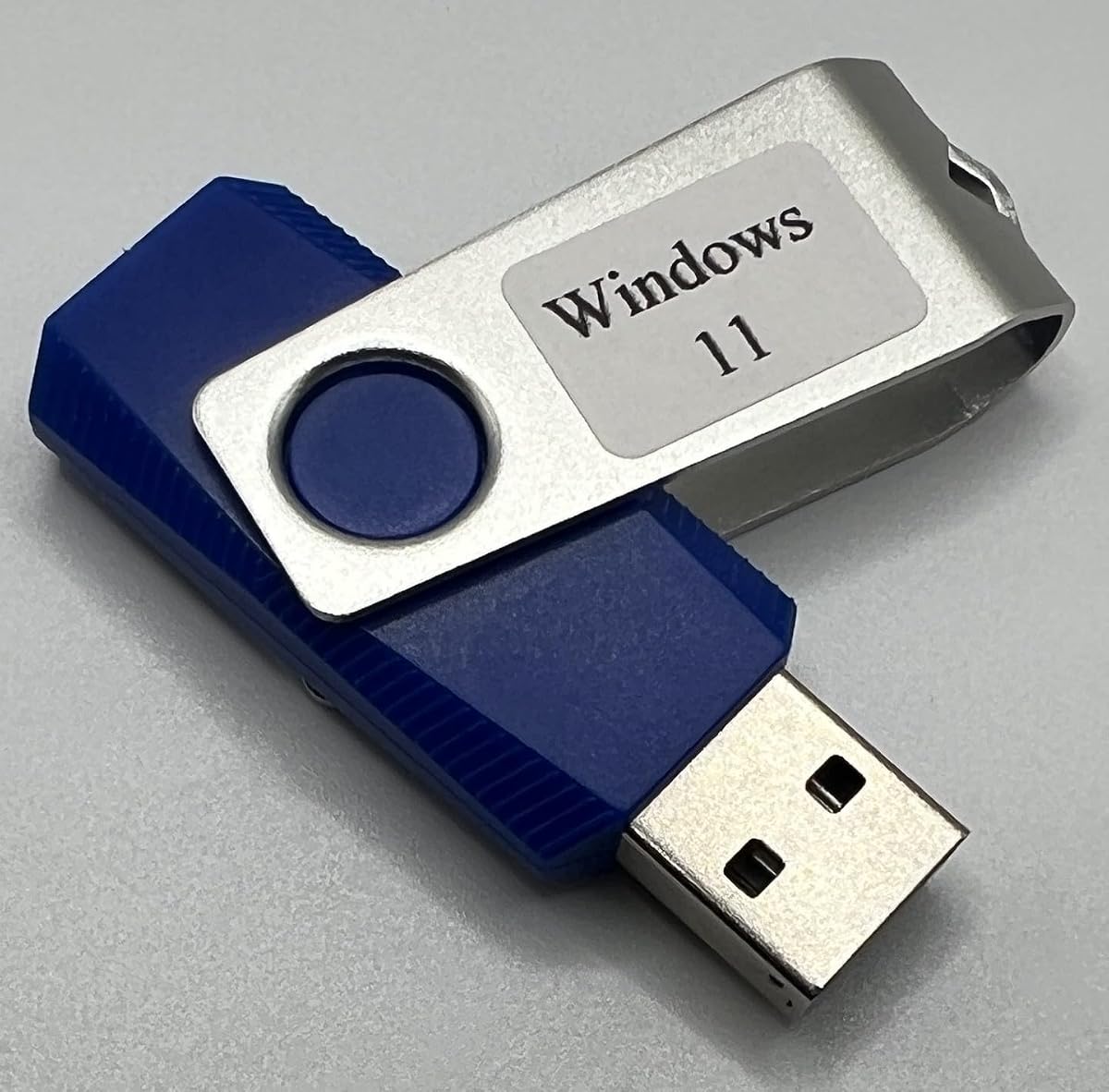


This 64GB USB drive stands out as a top choice for users needing a reliable tool to install or repair Windows systems. With a solid rating and extensive features, it handles everything from fresh installs to complex recovery tasks without requiring a TPM module.
We may earn a commission when you buy through this link, at no additional cost to you.
The inclusion of network drivers for both WiFi and LAN is a significant advantage, allowing you to connect to the internet immediately after installation. It also supports partitioning and data recovery, making it a versatile maintenance tool for technicians and advanced users.
Users should note that Secure Boot must be disabled in the BIOS to use this drive effectively. Additionally, while it fixes boot issues like blue screens, it does not support the Automatic Repair feature, meaning existing Windows installations cannot be preserved during repair.
If you need a comprehensive solution that covers installation, repair, and data recovery across multiple Windows versions, this drive is an excellent investment. It is particularly useful for those who encounter TPM barriers or need immediate network connectivity post-installation.
Drivers for WiFi and LAN are included on the USB, ensuring you can get online right after installing Windows to download updates or drivers.
This drive allows installation of Windows 11 and 10 without meeting the TPM hardware requirement, making it compatible with older or unsupported systems.
We may earn a commission when you buy through this link, at no additional cost to you.
This 8GB USB drive offers a straightforward and budget-friendly solution for users who simply need to reinstall or repair Windows 11. It avoids unnecessary complexity, focusing on core functionality that works with both UEFI and Legacy BIOS systems.
We may earn a commission when you buy through this link, at no additional cost to you.
The key strength lies in its simplicity and compatibility. It does not require a TPM module, which expands its usability to older hardware that might otherwise be excluded from upgrading to Windows 11. The process is designed to be beginner-friendly.
However, users should be aware that this tool is strictly for operating system installation and repair. It does not include hardware diagnostics or data recovery features, and you must have a valid product key separately for activation after installation.
For those who need a basic, no-frills option to get Windows running again without spending much, this drive is a practical choice. It is ideal for quick fixes where advanced troubleshooting tools are not required.
Priced lower than many competitors, this drive is perfect for users who only need installation capabilities without extra recovery utilities.
The drive bypasses the need for a TPM module, allowing installation on hardware that lacks the required security chip for standard Windows 11 setups.
We may earn a commission when you buy through this link, at no additional cost to you.
This 32GB drive provides a balanced mix of capacity and features for users working with Windows 10 or 11. Like the 64GB option, it includes essential network drivers and supports UEFI and Legacy BIOS, making it versatile for various hardware configurations.
We may earn a commission when you buy through this link, at no additional cost to you.
One of its standout features is the ability to back up data before installation, which helps protect important files during the reinstall process. It also offers tools for partitioning and general maintenance, adding value beyond just OS installation.
Similar to other options in this category, Secure Boot needs to be disabled in the BIOS to boot from this drive. Additionally, it is designed for reinstallation, meaning existing Windows systems are not preserved during the repair or recovery process.
If you are looking for a reliable tool that offers data backup capabilities alongside installation features, this drive is a strong contender. It is well-suited for users who need to recover data while refreshing their system.
The drive allows you to access your hard drive and back up data before installation, ensuring your files remain safe during the recovery process.
It is designed to work with all major PC brands, removing worries about hardware-specific issues during the boot or installation process.
We may earn a commission when you buy through this link, at no additional cost to you.
This 64GB drive distinguishes itself with additional repair utilities like password reset and hardware testing. These features make it particularly valuable for users dealing with locked accounts or suspected hardware issues alongside OS corruption.
We may earn a commission when you buy through this link, at no additional cost to you.
The inclusion of WiFi and LAN drivers ensures connectivity is not lost after installation. With support for both new and old computers, it offers a wide range of compatibility, making it a reliable choice for mixed environments or aging systems.
As with many bootable drives, you may need to disable Secure Boot to access the USB properly. While it is excellent for reinstalling Windows to fix failures, it does not support the Automatic Repair option provided by Windows itself.
If you require tools to reset passwords or test hardware health alongside standard installation capabilities, this drive is an ideal choice. It bridges the gap between a simple installer and a full diagnostic toolkit.
The drive includes utilities to reset Windows passwords, allowing access to locked accounts without needing to reinstall the operating system immediately.
Integrated hardware testing tools help identify potential issues with components, providing insight into whether problems stem from software or physical defects.
We may earn a commission when you buy through this link, at no additional cost to you.
This drive stands out because it works with Secure Boot enabled, eliminating the need to change BIOS settings before use. It ensures you always install the latest official version of Windows directly from Microsoft, avoiding outdated or pirated ISOs.
We may earn a commission when you buy through this link, at no additional cost to you.
The premium aspect lies in its security and support features. By maintaining Secure Boot integrity, it aligns with modern security standards. Additionally, US-based live support provides peace of mind for users who might struggle with the setup process.
However, this drive is limited to UEFI BIOS systems, meaning older computers with Legacy BIOS may not be compatible. You will also need to provide your own valid Windows license or product key for activation after installation.
If you prioritize security and official software sources, and your system supports UEFI, this is an excellent premium option. The added support channel makes it particularly useful for non-technical users who need guidance.
Unlike other drives, this one works without disabling Secure Boot, maintaining system security standards and simplifying the boot process for modern PCs.
Windows is downloaded directly from Microsoft during installation, ensuring you get the latest genuine updates without relying on pre-loaded files.
We may earn a commission when you buy through this link, at no additional cost to you.
This drive is designed specifically to resolve common issues like blue screens or slow performance. It includes multiple recovery options such as system repair and restore, which can be less invasive than a full reinstall.
We may earn a commission when you buy through this link, at no additional cost to you.
Detailed instructions are provided to help users navigate the recovery process step-by-step. The UEFI compliance ensures proper booting on modern computers, though it is limited to 64-bit architectures which cover most current hardware.
While it offers solid repair capabilities, it has a lower rating compared to other options, suggesting potential limitations or mixed user experiences. It is best suited for those who need specific system restoration tools rather than full installation media.
If you are dealing with boot errors or performance issues and prefer restoration over reinstallation, this drive is worth considering. Ensure your system matches the supported specifications before purchasing.
Features multiple recovery options including system repair and restore, allowing you to fix issues without losing all your installed programs and settings.
Includes detailed guides for boot setup and recovery procedures, reducing the confusion often associated with using bootable media.
We may earn a commission when you buy through this link, at no additional cost to you.
This drive stands out by including a license key for installation, which addresses the common need for activation keys separately. It covers Windows 10 and 11 installation along with recovery tools like password resets and network driver integration.
We may earn a commission when you buy through this link, at no additional cost to you.
The inclusion of hardware testing and backup tools adds value for users who need comprehensive system management. However, the lower rating suggests some users may have faced challenges with activation or compatibility.
As with many USB drives in this category, you may need to disable Secure Boot to access the installation media. Ensure you follow the provided instructions carefully to redeem the included key correctly.
If having a license key included is a priority for your setup, this drive offers a convenient package. It is best suited for users who can handle potential setup instructions and activation steps.
This drive includes one license key for activation, eliminating the need to purchase a separate product key after installation.
Beyond installation, it offers hardware testing and backup utilities, making it a versatile tool for general computer maintenance.
We may earn a commission when you buy through this link, at no additional cost to you.
This drive includes a WinPE utility suite that allows for backups, password recovery, and boot repair. Its all-in-one nature reduces the need for multiple discs or downloads when troubleshooting or restoring a computer.
We may earn a commission when you buy through this link, at no additional cost to you.
Comprehensive support is available including printed instructions and video tutorials, which helps beginners navigate the boot process safely. The drive is designed to be clean and free of malware, ensuring safe usage.
While it offers great functionality, the process requires disabling Secure Boot in some cases, which can be confusing for some users. The multiple steps involved may require patience to get right.
If you need a robust solution that combines installation with detailed diagnostic and backup tools, this drive is a solid choice. It is particularly helpful for those who need to restore systems quickly.
Boot into the included WinPE suite to backup files, troubleshoot startup problems, and recover data effectively without needing additional software.
Includes a video tutorial on how to boot from USB, making the initial setup process much easier for non-technical users.
We may earn a commission when you buy through this link, at no additional cost to you.
This drive offers a collection of 30 tools designed for installation and recovery across multiple Windows versions. It is ready to use out of the box, eliminating the need to download large files or create media yourself.
We may earn a commission when you buy through this link, at no additional cost to you.
Its versatility makes it suitable for technicians who work with various systems or home users who want an all-in-one solution. It supports both UEFI and Legacy BIOS, ensuring broad hardware compatibility.
While it provides many tools, it does not include a Windows license or activation key. Users should back up important files before use since installation or repair can lead to data loss if not managed carefully.
If you need a versatile tool that covers a wide range of maintenance tasks, this drive is a great option. It simplifies the workflow for those who need multiple solutions in a single portable device.
Includes 30 tools for installation and repair, covering startup failures, boot errors, and system crashes in one convenient package.
The drive is reusable and ready to use, saving time and storage space compared to creating multiple bootable images manually.
We may earn a commission when you buy through this link, at no additional cost to you.
This drive offers a simple plug-and-play solution for installing Windows 11 Pro or Home. It comes with the latest official version and includes user guides, ensuring you have clear instructions for the installation process.
We may earn a commission when you buy through this link, at no additional cost to you.
Compatibility is a strong point as it works with major PC brands like Dell, HP, and Lenovo. The drive is built with high-quality flash storage to ensure reliability during the boot and installation process.
However, it has a lower rating compared to some competitors which may indicate occasional issues. It is limited to 64-bit systems, which covers most modern hardware but excludes older 32-bit devices.
If you need a straightforward installer for modern systems and prefer official software sources, this drive is a viable option. It is best suited for users who want a hassle-free installation experience.
Deployed with the latest official version of Windows 11, ensuring you get a clean and secure installation without outdated files.
Compatible with all PC brands including Dell, HP, and Lenovo, making it a reliable choice for various hardware configurations.
We may earn a commission when you buy through this link, at no additional cost to you.
Choosing the right bootable USB drive involves considering compatibility, included tools, and ease of use. This guide breaks down the key factors to help you select the best option for your needs.
Ensure the drive supports your system's BIOS type. Most modern PCs use UEFI, but older systems may require Legacy support. Check if Secure Boot needs to be disabled to use the drive effectively.
Choose a drive that offers both UEFI and Legacy compatibility to maximize flexibility across different hardware configurations and avoid boot issues.
Many systems require a TPM module for Windows 11 installation. Select a drive that explicitly bypasses this requirement to ensure compatibility with older or unsupported hardware.
If your system lacks a TPM, verify that the drive allows installation without it to avoid installation errors or blocked setups.
Consider whether you need additional tools like network drivers, password reset, or data recovery. Drives that include these features reduce the need for secondary software after installation.
Prioritize drives that offer network connectivity and recovery options if you frequently deal with boot failures or system maintenance tasks.
Storage capacity affects how many tools and files you can carry on the drive. Options range from 8GB to 64GB, with larger drives supporting more extensive recovery suites and utilities.
Select a drive with enough capacity to store necessary drivers and backups without slowing down the installation or recovery process.
Look for drives with clear instructions and video tutorials. Simple setup processes reduce frustration, especially for users who are not familiar with BIOS settings.
Choose a product that provides comprehensive guides or support to ensure a smooth experience during the boot and installation process.
Verify that the drive uses official Windows versions to avoid security risks or outdated files. Some premium options download directly from Microsoft during installation.
Ensure the drive is virus-free and uses genuine ISOs to maintain system security and stability after installation.
Some drives offer technical support or warranties that can be crucial if issues arise during installation. US-based support can provide faster assistance for complex problems.
Consider options with accessible support channels if you anticipate needing help during the setup or recovery process.
Compare prices against the features included. Budget options may lack advanced tools, while premium ones offer more utilities and support. Choose based on your specific needs.
Balance the cost with the benefits provided to ensure you get the best value for your purchase without overspending on unnecessary features.
To use the drive, plug it into your computer before powering on. Enter the BIOS or boot menu by pressing the designated key such as F2 or F12 during startup. Select the USB drive as the boot device to start the installation or recovery process.
Follow the on-screen instructions provided by the drive software. If Secure Boot is enabled, you may need to disable it in the BIOS settings before booting. Ensure you back up important data before proceeding with any installation or repair operations.
Store the drive in a cool, dry place to prevent damage. Avoid bending or dropping the drive to maintain its integrity. Keep it safe from magnetic fields and physical shocks to ensure it remains functional for future use.
Most drives in this list are designed to bypass the TPM requirement, allowing installation on systems without the module. This makes them suitable for older hardware that would otherwise be blocked from upgrading to Windows 11.
Yes, many drives support installation of Windows 11 alongside versions like Windows 7 and 8. However, ensure your hardware meets the basic system requirements for the target version.
Most drives do not include a product key. You will need to provide your own valid license or purchase one separately for activation after the installation is complete.
Access your BIOS settings during startup and disable Secure Boot. This allows the system to boot from the USB drive. Re-enable it after installation for better security.
Some drives include data recovery tools that allow you to backup files before installation. Check the specific product details to see if this feature is included.
No, these drives are specifically designed for Windows systems. They are not compatible with macOS, Chromebooks, or non-Windows devices.
Installation time varies based on hardware and internet speed. It typically takes between 20 minutes to an hour to complete a fresh install of Windows 11.
Choosing the right bootable Windows 11 USB drive depends on your specific needs for installation, repair, and recovery. The top picks offer a balance of features like TPM bypass, network support, and comprehensive tools to handle various system issues effectively.
Prioritize compatibility with your BIOS type and the inclusion of essential utilities like network drivers and data recovery. Drives that support both UEFI and Legacy systems provide greater flexibility for diverse hardware configurations.
Always verify current availability and support options before purchasing. Prices can change, and having access to technical support can be invaluable if you encounter unexpected issues during the installation or recovery process.