
WAVLINK USB 3.0/USB C to HDMI Universal Video Adapter
4.4Editor score
Supports up to six monitors
USB 3.0 GPU certified
18 months limited warranty
This guide compares the top Displaylink adapters for dual 4K displays across Mac and Windows to help you choose the right docking solution.
Finding the right Displaylink adapter can transform your single-screen laptop into a powerful dual-monitor workstation. These devices use advanced technology to bypass native port limitations, offering seamless extended desktop experiences for professionals and remote workers.
We evaluated ten top-rated models based on compatibility, video performance, build quality, and additional connectivity options. Our analysis covers USB-C and USB-A variants, ensuring you find a solution that fits your specific hardware and workflow needs perfectly.
Each pick below highlights key strengths and potential limitations to help you make an informed decision. Prices and availability change frequently, so verify current details before purchasing to ensure you get the best value for your investment today.
4.4Editor score

4.6Editor score

4.5Editor score
This side-by-side comparison highlights the unique strengths of each adapter to help you match the right tool to your specific display needs.



The ACASIS USB C to Dual HDMI DisplayLink Adapter is a top-rated solution rated 4.3 stars, designed to transform your laptop into a productivity powerhouse. It stands out by supporting dual 4K displays at 60Hz via a single USB-C or USB-A port.
We may earn a commission when you buy through this link, at no additional cost to you.
Its standout feature is the 100W PD fast charging port which ensures your MacBook or Dell laptop remains powered during extended work sessions. The aluminum design stays cool while offering three USB-A ports for essential peripherals like mice and keyboards.
However, users must install the DisplayLink driver which adds a small setup step. Additionally, it does not support gaming or HDCP protected content so keep that in mind if you plan to stream media on the extended screens.
If you need a reliable dual monitor setup for office work or coding on a Mac M1 to M4 system this adapter delivers exceptional value and performance. It is the perfect choice for professionals seeking seamless multitasking capabilities.
The 100W PD charging ensures your laptop stays powered while driving two external screens simultaneously without interruption.
Designed to bypass native limitations on M1 M2 M3 and M4 chips it offers a seamless dual display experience for Mac users.
We may earn a commission when you buy through this link, at no additional cost to you.
The WAVLINK USB 3.0 or USB C to Dual HDMI 4K@60hz Splitter is a highly rated adapter with a 4.4 star rating focusing on seamless compatibility. It allows you to deliver dual 4K 60Hz displays from a single USB-C or USB-A port.
We may earn a commission when you buy through this link, at no additional cost to you.
Its hybrid 2-in-1 cable is a key strength allowing easy connectivity to USB-C USB-A Thunderbolt 3/4 and USB 4 ports without extra adapters. This versatility ensures it fits various laptop types and office setups effortlessly and reliably.
While it supports Mac M1 to M5 and Windows 10/11 it does require driver installation and does not support iOS Linux or Unix systems. Also it is not recommended for gaming or viewing HDCP protected content like Netflix.
For users needing a flexible dual monitor solution that works across different port types this adapter offers great value. It is an excellent choice for professionals wanting to expand their workspace efficiently with minimal hardware hassle.
The included hybrid 2-in-1 cable simplifies connection to both legacy USB-A ports and modern USB-C Thunderbolt interfaces easily.
Optimized for web and productivity software it handles multitasking well while avoiding limitations related to video playback and gaming.
We may earn a commission when you buy through this link, at no additional cost to you.
The WAVLINK USB 3.0/USB C to HDMI Universal Video Adapter is a budget-friendly option with a 4.4 star rating ideal for users needing multiple screens. It allows you to connect up to six monitors total by using one adapter per monitor on PCs.
We may earn a commission when you buy through this link, at no additional cost to you.
Its main advantage is the built-in USB 3.0 GPU certified by DisplayLink which ensures stable video output at resolutions up to 2048×1152@60Hz or 2560×1440@50. It also includes an external 2.1CH Microphone in and Earphone output for convenience.
However users must install the DisplayLink driver before first use. The adapter supports Windows 11/10, MacOS Ventura 13 to Mojave 10.14 Ubuntu 20.04 22.04 ChromeOS and Android 5+ with USB OTG but requires specific setup steps.
If you need to connect multiple displays on a budget this adapter offers incredible flexibility and performance. It is an ideal solution for office setups where maximizing screen real estate is critical without spending a fortune on expensive docking stations.
Unlike dual adapters this model allows up to six monitors to be connected on PCs making it perfect for trading desks or command centers.
The built-in microphone and earphone ports provide convenient audio options for calls without needing extra dongles or hubs.
We may earn a commission when you buy through this link, at no additional cost to you.
The Plugable USB C to HDMI Adapter is a well-known option with a 4.3 star rating designed to beat the Mac display limit. It adds two 4K 60Hz HDMI external displays to MacBook M1 through M5/Neo from a single USB-C port even for base Air models.
We may earn a commission when you buy through this link, at no additional cost to you.
This adapter has been recognized as the Best DisplayLink Adapter for MacBook Neo by MacWorld delivering dual 4K 60Hz displays from a single Thunderbolt or USB-C port. It also includes lifetime support from their North American team of connectivity experts.
While Windows and ChromeOS systems are plug-and-play Mac users must install the DisplayLink Manager app and allow required screen recording permissions. It does not support playback of HDCP protected content on sites like Netflix Hulu or Disney+.
If you rely heavily on a MacBook and need three total screens for your setup this adapter is a top choice. It is perfect for hybrid office setups and those who prioritize long-term support and reliability over casual media streaming.
Specifically designed to bypass Apple native external display limits it ensures your base model MacBook Air can run three screens effectively.
Access to a North American team of connectivity experts ensures you get help whenever needed for long-term peace of mind.
We may earn a commission when you buy through this link, at no additional cost to you.
The Plugable USB-C & USB-A Dual 4K HDMI Adapter with DisplayLink is a premium option rated 4.5 stars offering flexible connectivity options. It lets you connect two external HDMI displays at up to 4K 60Hz from virtually any laptop using either USB-C or USB-A.
We may earn a commission when you buy through this link, at no additional cost to you.
It is powered by the DisplayLink DL-6950 chipset which delivers dual HDMI monitors at resolutions up to 3840×2160 at 60Hz in extended or mirrored modes. The integrated adapter stays with the device making it easy to move between computers.
While it is ideal for traditional hybrid and hot-desk workspaces Windows and ChromeOS systems automatically support DisplayLink. macOS is not recommended for this specific model so Mac users should look at other options for best compatibility.
If you need a reliable adapter for home office business or IT use this model provides robust dual-display support for multitasking coding and everyday productivity. The lifetime support team ensures you have help whenever you need it for any setup questions.
Use USB-C on newer systems or the attached USB-A adapter for older Windows laptops without keeping track of separate accessories.
The DL-6950 chipset drives two HDMI monitors smoothly without needing an external GPU or additional Thunderbolt port on your laptop.
We may earn a commission when you buy through this link, at no additional cost to you.
The StarTech USB-A DisplayLink Dual 4K 60Hz DP Mini Dock is a compact option rated 4.4 stars designed for portability. It is a USB 3.0 mini dock with dual monitor DisplayPort and GbE port offering widespread display compatibility with many systems.
We may earn a commission when you buy through this link, at no additional cost to you.
It features a 1ft attached cable to provide setup flexibility and extended port reach to devices like USB-A Surface Pros. This reduces port strain and makes it ideal for small in-office or work-from-home workspaces where space is tight.
It is compatible with a wide range of USB-A laptops ultrabooks chromebooks and Surface Pros. It supports automatic driver setup on multiple OS platforms including Windows and Chrome OS ensuring easy deployment across different hardware environments.
If you need a mini dock that fits easily in your bag and provides dual DisplayPort outputs with networking this adapter is perfect. It is designed specifically for users needing a compact solution without sacrificing essential connectivity like Ethernet for stable internet.
The included GbE port ensures you have a stable wired internet connection even when wireless networks are unreliable or busy.
The attached 1ft cable reduces clutter and allows flexible placement of your mini dock relative to your laptop and monitors.
We may earn a commission when you buy through this link, at no additional cost to you.
The ACASIS Dual DP DisplayLink Adapter is a high-performance option rated an impressive 4.8 stars designed specifically for M1/M2/M3/M4 MacBook Air/Pro users. It features 2 DP ports with 4K@60Hz resolution acting as a high-performance docking station for dual monitor setups.
We may earn a commission when you buy through this link, at no additional cost to you.
It combines heavy-duty power delivery with display capabilities featuring a 100W PD port to keep your notebook fully powered while driving external displays. The primary DP port supports MST functions while dual DP ports serve as your primary dual monitor adapter setup.
It bridges legacy peripherals and modern display workflows with 3 USB-A ports for instant plug-and-play convenience with mice and keyboards. Crafted from high-grade aluminum alloy it stays cool and resists scratches during travel between home office and business trips.
If you are a designer or power user needing ultra-stable video signals without flicker this adapter is the top choice. It solves native single-screen limitations on Macs effectively bypassing macOS multi-screen restrictions for true extended desktop modes and efficiency.
The 100W PD port ensures your notebook remains fully powered while driving multiple external displays during long work sessions.
The high-grade aluminum alloy ensures optimal heat dissipation preventing overheating and maintaining stable performance during heavy use.
We may earn a commission when you buy through this link, at no additional cost to you.
The WAVLINK USB 3.0 & USB C to Dual HDMI Adapter is a secure option rated 4.6 stars featuring advanced DL-Chip encryption technology. It delivers dual 4K@60Hz via USB-C or USB-A ports ideal for Mac M1 to M5 Macs and Macbook Neo users engaged in HD video conferencing.
We may earn a commission when you buy through this link, at no additional cost to you.
Its standout feature is the enterprise-level data protection ensuring sensitive information is safeguarded during daily operations. This makes it perfect for versatile setups across various devices and platforms where security is a high priority for corporate environments.
While it supports Windows 11/10 macOS 11 or later and ChromeOS 100+ systems it requires driver installation and does not support Linux Unix iPad or iOS. Also it is not recommended for gaming or viewing HDCP protected content like Netflix.
If you need a secure dual monitor solution that ensures enhanced data protection while offering crystal-clear visuals this adapter is ideal. It is a perfect choice for developers analysts and professionals multitasking across multiple windows with confidence in their privacy.
Equipped with WAVLINK's encrypted DL-chip technology it ensures enterprise-level data protection for corporate environments and sensitive tasks.
The versatile connectivity supports Thunderbolt 3/4 USB4 and legacy USB 2.0 ports for maximum efficiency and workstation transformation.
We may earn a commission when you buy through this link, at no additional cost to you.
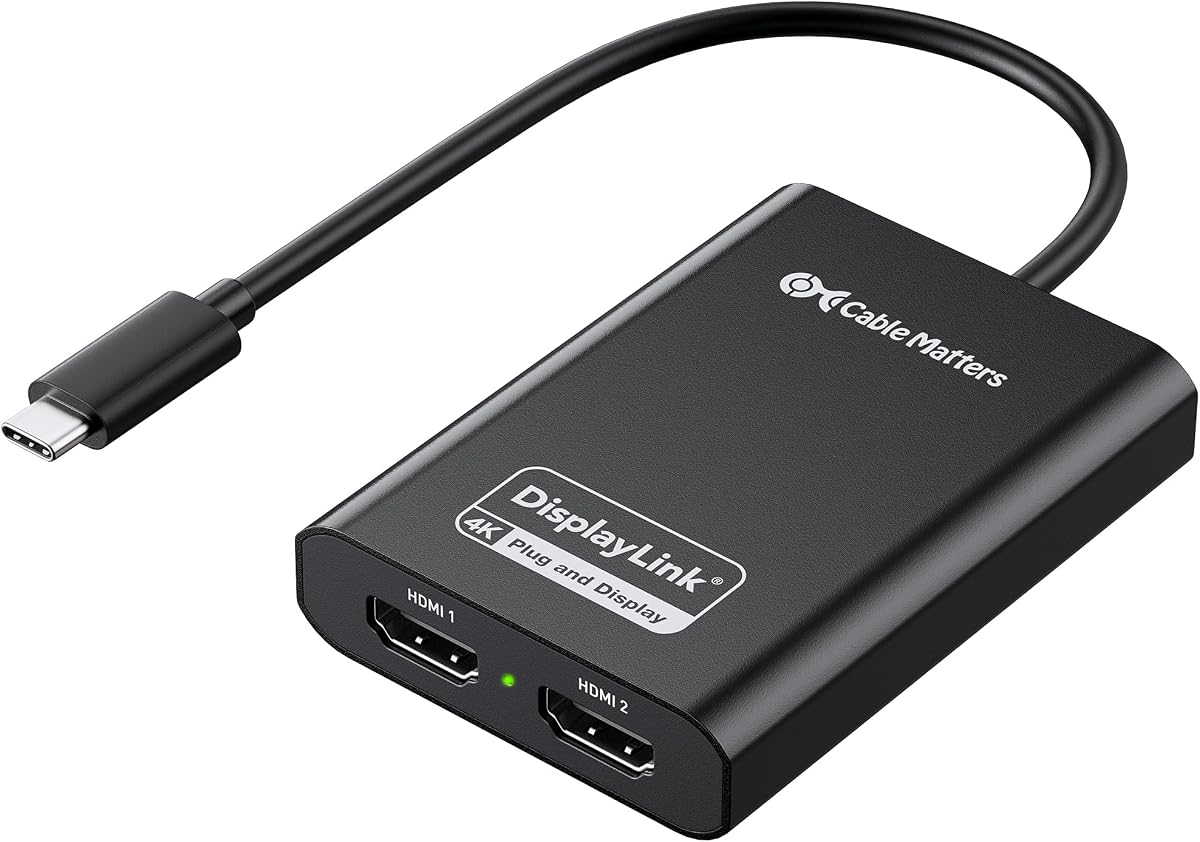
The Cable Matters USB C to Dual HDMI Adapter is a certified option rated 4.0 stars that uses DisplayLink technology to break single-display limits. It turns one USB-C USB4 or Thunderbolt port into two HDMI outputs perfect for productivity creative workflows and streaming setups.
We may earn a commission when you buy through this link, at no additional cost to you.
Its standout feature is the dual 4K@60Hz performance via HDMI 2.0 leveraging USB 3.2 Gen 1 bandwidth to eliminate 30Hz flicker and single-display limits. It works with macOS 11+ Windows 10/11 and ChromeOS laptops including MacBook Air/Pro Dell XPS and HP Spectre.
Users must install the DisplayLink Manager app and allow Screen Recording permission on Macs for proper functionality. Performance may vary based on CPU memory USB bandwidth and running applications so a Windows 10/11 laptop with Intel 8th Gen Core i5/i7 or newer is recommended.
If you need a durable adapter that offers true dual extended displays with high refresh rates this is a solid choice. Its aluminum housing dissipates heat efficiently making it ideal for creative workflows and everyday use without overheating issues.
DisplayLink Certified technology ensures consistent performance and compatibility across various operating systems and hardware configurations.
Leveraging USB 3.2 Gen 1 bandwidth it powers two crisp 4K 60Hz displays via HDMI 2.0 for smooth sharp visuals.
We may earn a commission when you buy through this link, at no additional cost to you.
The Sonnet DisplayLink Dual 4K HDMI Adapter is a well-rated option with a 4.4 star rating designed to expand your onscreen work and play area. It enables connection of two 4K 3840×2160 60Hz or two 1440p or 1080p 144Hz HDMI displays to a single Thunderbolt or USB port.
We may earn a commission when you buy through this link, at no additional cost to you.
It includes a USB-A female to USB-C male adapter for wider compatibility and supports audio transmission for immersive viewing experiences. It is perfect for M1 or M2 Mac Notebooks including M1 MacBook Air M1 MacBook Pro and also compatible with M1 Pro Max and Ultra.
Users should note that it supports M1 Pro M1 Max and M1 Ultra chips as well as other Mac and Windows computers. The USB-A female to USB-C male adapter included ensures it fits Thunderbolt or USB 3 or 4 ports easily without extra purchases.
If you need to open multiple applications on different displays or watch videos on larger screens this adapter is a great tool. It is the ideal choice for M1 or M2 Mac Notebooks needing two external screens and audio support for a complete multimedia experience.
Supports 144Hz on lower resolutions allowing for smoother motion in presentations and multimedia viewing compared to standard 60Hz limits.
Designed specifically for M1 or M2 Mac Notebooks it ensures full compatibility and performance for Apple Silicon devices.
We may earn a commission when you buy through this link, at no additional cost to you.
Choosing the right Displaylink adapter involves considering several factors to ensure compatibility and performance with your setup.
Always verify that the adapter is compatible with your specific operating system and hardware. Mac users especially need adapters that support their M1 to M5 chips and macOS versions while Windows users should check for Windows 10 or 11 support.
Check the device specs to confirm it supports your laptop's ports like USB-C Thunderbolt or USB-A. This prevents buying an adapter that does not fit your available connectors.
Consider the resolution and refresh rate you need. If you require dual 4K at 60Hz ensure the adapter explicitly states support for these settings. Lower quality adapters might cap at 1080p or 30Hz which causes flicker and poor visuals.
Select an adapter that matches your monitor capabilities. Investing in one with higher video output specs ensures future-proofing and smoother multitasking.
Look for adapters that offer the right mix of USB ports and video outputs. Some models include USB-A ports for peripherals while others focus only on video. This helps maintain a clean and organized desk setup.
Ensure the adapter has enough ports for your mouse keyboard and drives. Limited port availability can force you to buy additional dongles and clutter your workspace.
Most Displaylink adapters require a driver installation. Check if the driver is easy to download and install on your specific OS. Some newer models offer plug-and-play functionality which simplifies the setup process significantly.
Verify the driver support lifespan. A model with active driver updates ensures long-term stability and better integration with future OS versions.
If you are using a laptop ensure the adapter supports Power Delivery to charge your device while in use. This eliminates the need for a separate charger and keeps your setup clean and efficient.
Look for adapters with high wattage support like 100W PD. This ensures your laptop stays powered during long work sessions without draining the battery.
Choose adapters made from durable materials like aluminum alloy. These materials help dissipate heat effectively and prevent the device from getting too hot during prolonged use.
A compact and portable design is also important for travelers. Check the dimensions and weight to ensure it fits easily in your laptop bag or travel case.
Always check the warranty period and the support provided by the manufacturer. Look for companies that offer lifetime support or extended warranty options for peace of mind.
Ensure there are clear channels for technical support. A responsive support team helps resolve driver issues or hardware problems quickly without downtime.
Compare the features against the price to find the best value. While premium options offer better build and more ports budget options might suffice for basic dual monitor needs.
Investing in a slightly more expensive model often pays off in longevity and reliability. Avoid very cheap adapters that might have poor build quality or lack essential features.
To start using your Displaylink adapter download and install the latest DisplayLink driver from the official website before connecting the device. Restart your computer to ensure the driver integrates properly with your operating system.
Connect the adapter directly to your laptop's USB-C or USB-A port. Then plug your HDMI or DisplayPort monitors into the adapter. Wait a few seconds for the system to recognize the new displays automatically.
To maintain optimal performance avoid bending the cables sharply or exposing them to moisture. Ensure the adapter is well ventilated and not covered by any objects that could trap heat during operation.
Yes many Displaylink adapters are specifically designed to work on M1 to M5 Macs. They bypass the native single-display limitation allowing you to connect multiple external monitors for improved productivity and multitasking.
Most modern Displaylink adapters support up to dual 4K at 60Hz. This ensures crisp and detailed visuals on high-resolution monitors which is perfect for office work creative tasks and video conferencing sessions.
Generally yes but you should verify the specs for each adapter. Some budget models might have limitations on certain ports so check the manufacturer details to confirm full resolution support on all connected displays.
Yes almost all Displaylink adapters require installing a specific driver to function. This driver enables the adapter to communicate with your operating system for seamless display extension and mirror capabilities.
Most Displaylink adapters are not optimized for gaming due to slight latency. They are best suited for productivity apps video conferencing and office work rather than fast-paced gaming or video playback.
Yes many adapters include a USB-C Power Delivery port that charges your laptop while in use. This feature ensures your device stays powered up during long sessions without needing an extra charger.
Choosing the right Displaylink adapter can transform your single-screen laptop into a powerful dual-monitor workstation. These adapters bypass native limitations with reliable connectivity and high-resolution output.
Prioritize compatibility with your specific hardware and OS to ensure smooth operation. Check that the adapter supports your desired resolution and includes essential ports for your peripherals.
Verify current prices and stock before purchasing as availability may change. This ensures you get the best value and current model for your specific display needs and budget today.