
StarTech Thunderbolt 5 Universal
4.7Editor score
Driverless plug-and-play
Quad 4K 60Hz support
140W power delivery
This guide compares the top 10 docking stations with quad monitor support to help you choose the right multi-monitor setup for your workflow.
Finding a docking station with quad monitor support is essential for professionals who need multiple screens to boost productivity and manage complex tasks efficiently.
We evaluated ten top models based on display capabilities, port variety, power delivery, and compatibility to ensure you get a reliable solution for your desktop setup.
Each pick highlights key features and real-world performance, though note that prices and availability can change frequently so always check current listings before buying.
4.7Editor score
4.4Editor score

4.4Editor score
Here is a side-by-side comparison of all ten models to help you quickly identify which docking station fits your specific display and connectivity needs.

This model aims to support quad monitor setups but lacks detailed specifications in our current data set.
We may earn a commission when you buy through this link, at no additional cost to you.
It may offer general connectivity options suitable for basic desktop expansion needs.
Verify compatibility with your specific laptop before purchasing to ensure support.
Consider this option if you find it fits your budget and general requirements.
Ensure your laptop supports video output before connecting to this dock.
We may earn a commission when you buy through this link, at no additional cost to you.
This model is another option for multi-monitor setups though specific details are limited.
We may earn a commission when you buy through this link, at no additional cost to you.
It may provide essential ports for connecting peripherals alongside multiple displays.
Check driver requirements and compatibility with your operating system carefully.
Evaluate if this dock meets your specific performance expectations for work.
Look for USB and video outputs to match your peripheral needs.
We may earn a commission when you buy through this link, at no additional cost to you.
This model is positioned for professional use but lacks clear specs in our data.
We may earn a commission when you buy through this link, at no additional cost to you.
It likely supports high-resolution displays to aid complex workflows and multitasking.
Confirm power delivery capabilities if you plan to charge a laptop simultaneously.
Review user feedback to gauge reliability and ease of setup for work.
A reliable dock helps streamline tasks when working with multiple applications.
We may earn a commission when you buy through this link, at no additional cost to you.
This model might serve home office users needing more screen real estate.
We may earn a commission when you buy through this link, at no additional cost to you.
Detailed specifications are not available so verify features before purchase.
Ensure it supports your preferred video connectors like HDMI or DisplayPort.
Consider build quality and port layout for long-term desk organization.
A well-designed dock reduces cable clutter and keeps your workspace tidy.
We may earn a commission when you buy through this link, at no additional cost to you.
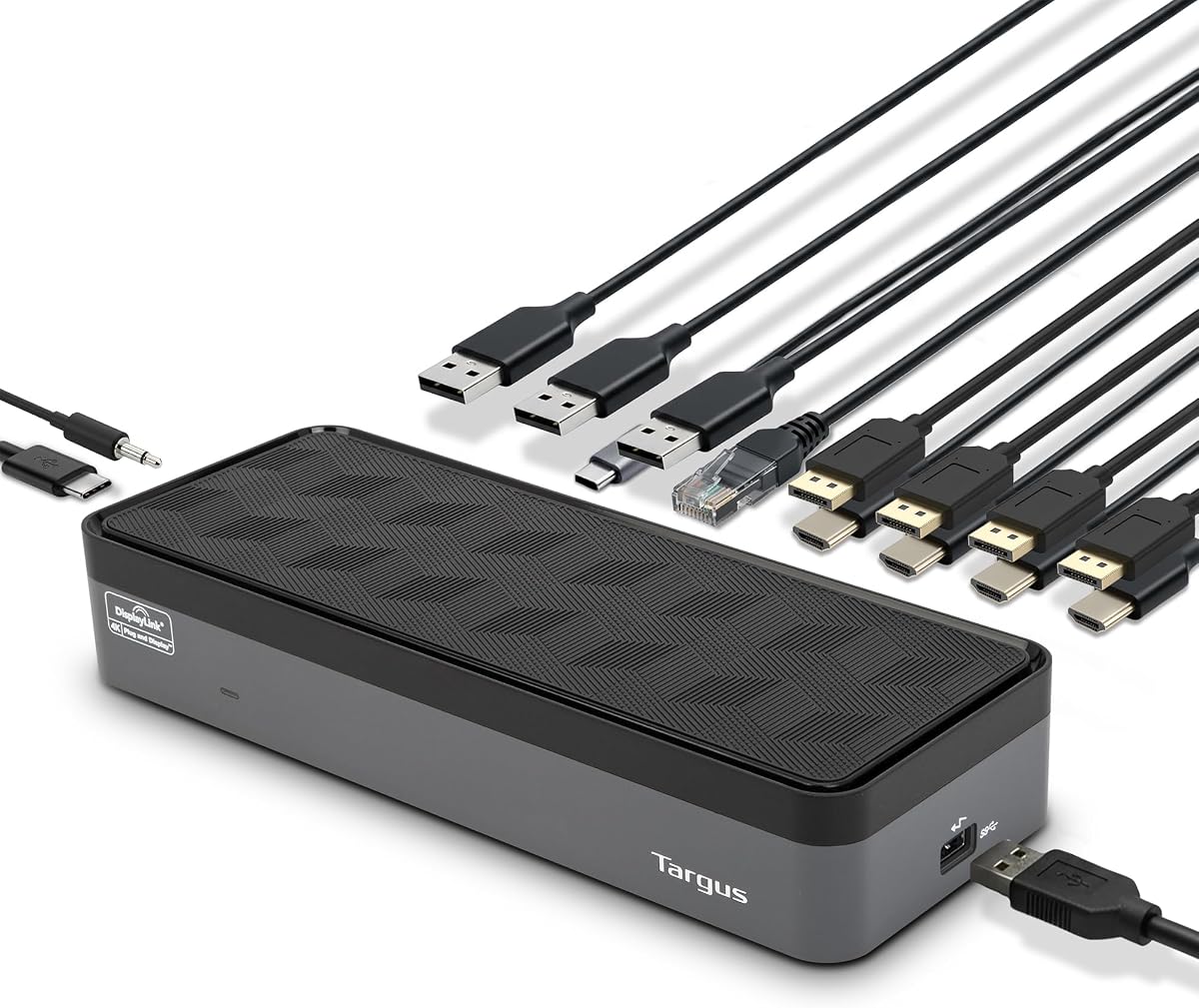
The Targus USB-C Universal Quad 4K docking station stands out for its ability to connect four 4K displays simultaneously.
We may earn a commission when you buy through this link, at no additional cost to you.
It features a powerful 100W Power Delivery port that can charge most laptops while driving multiple screens.
Users may need to use legacy adapters for older hosts but the universal design covers a wide range of brands.
This dock is an excellent choice for professionals needing a robust multi-monitor setup without complex configurations.
Driving four 4K screens lets you manage data, communication, and content side by side.
With 100W power delivery you can often leave your laptop adapter at home.
We may earn a commission when you buy through this link, at no additional cost to you.
The TobenONE DisplayLink Docking Station offers an impressive array of ports including options for up to four 4K displays.
We may earn a commission when you buy through this link, at no additional cost to you.
It comes with a 120W power adapter ensuring your laptop stays charged even under heavy load from multiple screens.
Installation requires DownloadLink drivers which may add setup time but enables more displays than native ports allow.
This dock is ideal for users seeking a high-performance quad setup without spending on premium Thunderbolt hardware.
DisplayLink technology lets you connect more screens than your laptop natively supports.
The included 120W adapter simplifies your desk by removing the need for a separate charger.
We may earn a commission when you buy through this link, at no additional cost to you.
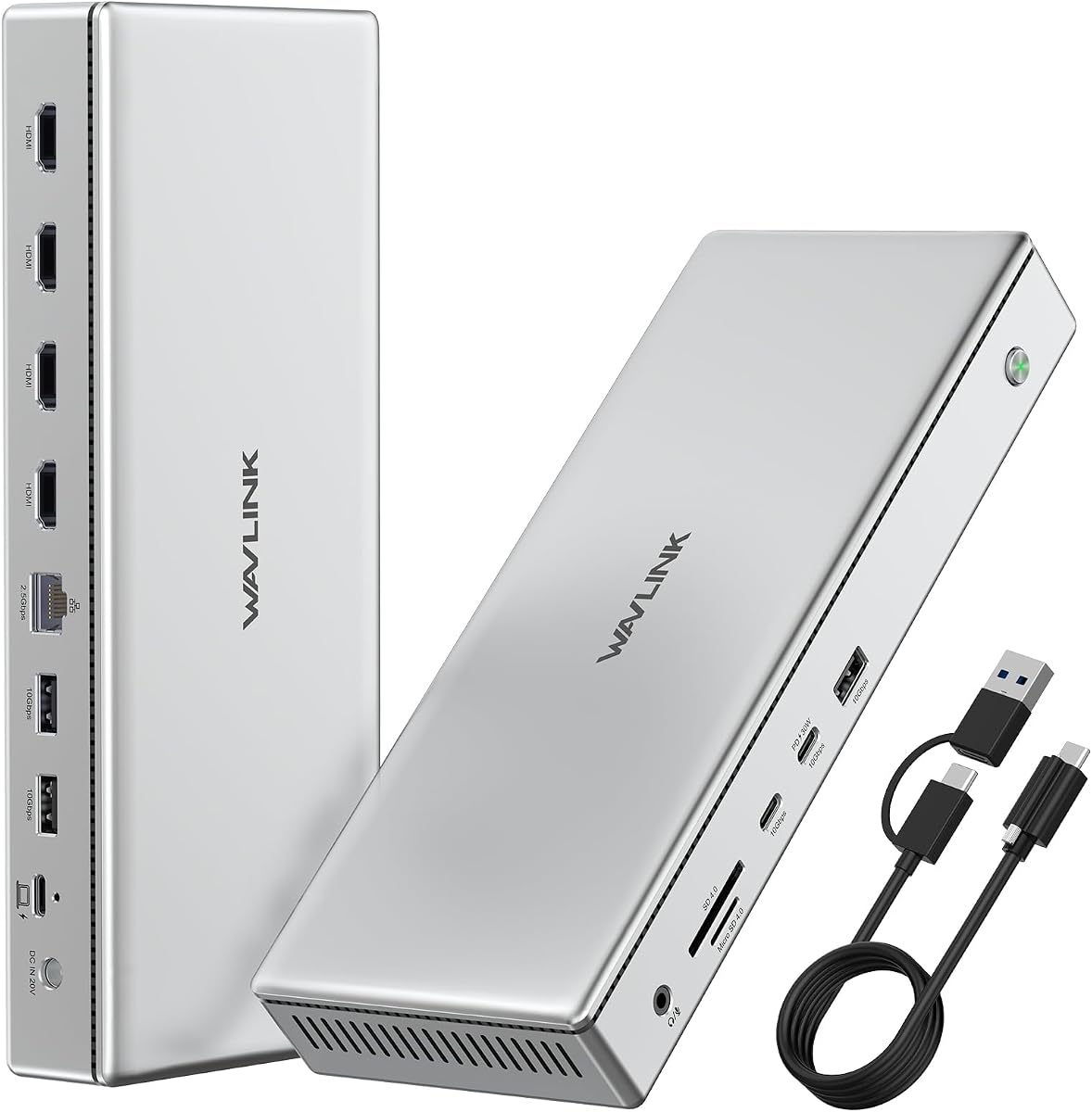
The WAVLINK Pro Docking Station provides four HDMI ports for quad 4K displays making it versatile for many users.
We may earn a commission when you buy through this link, at no additional cost to you.
It includes a 160W adapter ensuring ample power for both the dock and connected laptops or mobile devices.
The 2.5G Ethernet port offers faster network speeds which is useful for large file transfers or video calls.
This dock balances features and performance well especially for Windows users needing multiple screens without limits.
2.5G Ethernet provides faster internet and file transfer speeds compared to standard Gigabit.
The aluminum housing helps dissipate heat keeping the dock cool during heavy use.
We may earn a commission when you buy through this link, at no additional cost to you.
The StarTech Thunderbolt 5 Universal Docking Station delivers driverless performance ideal for shared or corporate environments.
We may earn a commission when you buy through this link, at no additional cost to you.
It supports quad 4K displays on Windows and can drive high resolutions on Apple Silicon with Thunderbolt 5.
With 140W power delivery it can charge powerful laptops while maintaining full performance across multiple connected screens.
This dock is the top pick for users who prioritize reliability and ease of setup above all else.
True plug-and-play reduces setup time and support tickets significantly.
Thunderbolt 5 ensures maximum bandwidth for high-resolution displays and fast data.
We may earn a commission when you buy through this link, at no additional cost to you.
The TobenONE 18-in-1 Docking Station offers an incredible amount of connectivity options for complex workstations.
We may earn a commission when you buy through this link, at no additional cost to you.
It features four HDMI ports allowing flexible configuration of multiple monitors up to 4K resolutions.
With 18 total ports you can connect almost any peripheral without needing additional hubs or splitters.
This model is perfect for users who need extensive connectivity alongside multiple screen support.
Eighteen ports mean you rarely need extra adapters for your devices.
Integrated SD card readers make importing photos or files convenient.
We may earn a commission when you buy through this link, at no additional cost to you.
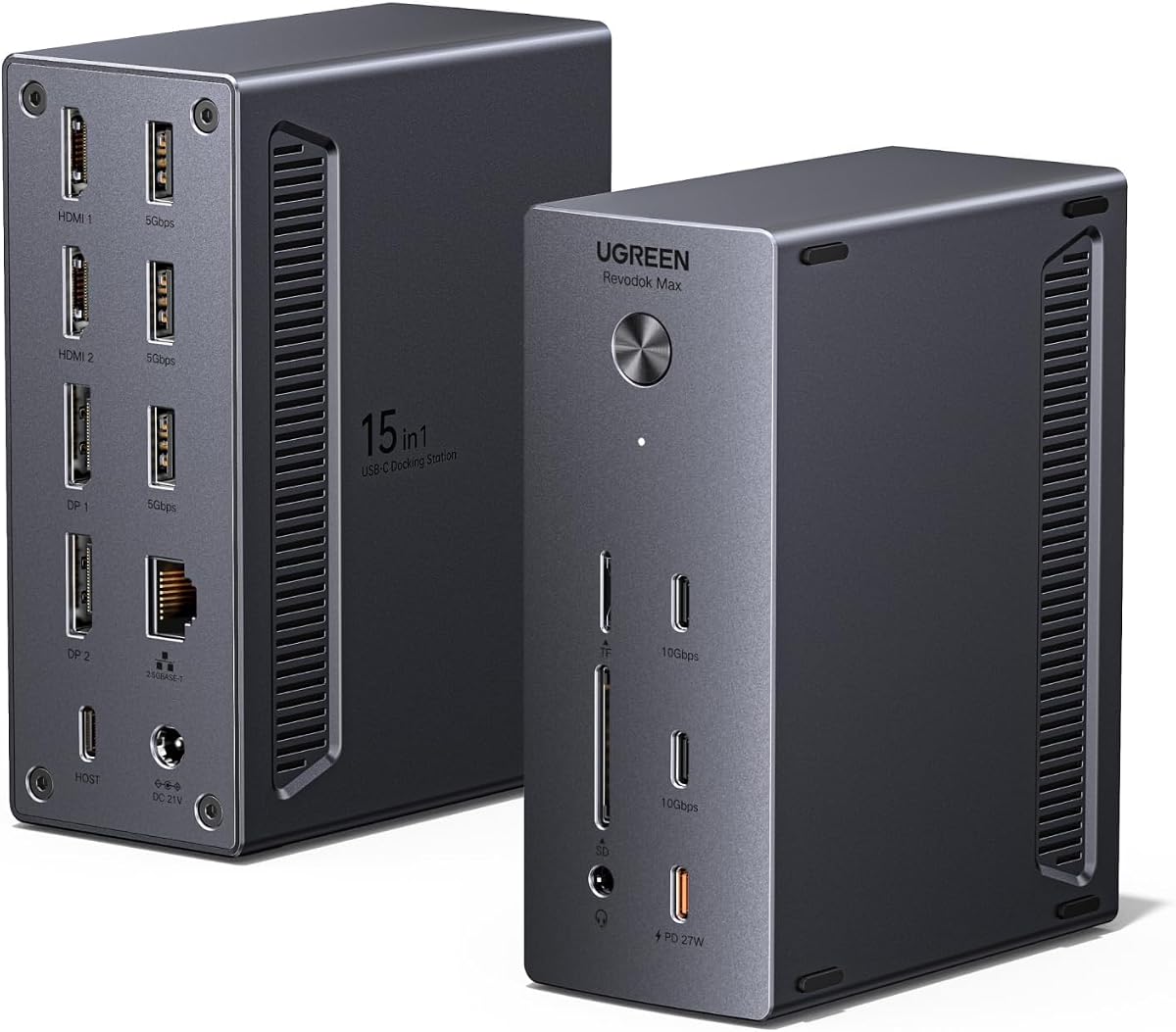
The UGREEN USB-C DisplayLink Docking Station supports up to four monitors and offers fast data transfer speeds.
We may earn a commission when you buy through this link, at no additional cost to you.
It includes a 150W adapter providing strong power delivery to laptops and connected mobile devices simultaneously.
USB-C data ports offer 10Gbps speeds which is excellent for external drives or high-speed peripherals.
This dock is a strong contender for users who need both multiple screens and fast data connections.
10Gbps USB-C ensures external drives transfer files quickly without bottlenecks.
The 150W adapter handles charging for multiple devices including the laptop.
We may earn a commission when you buy through this link, at no additional cost to you.
Selecting the right quad monitor dock depends on your laptop compatibility, display needs, and required ports.
Ensure the docking station supports four external displays at your desired resolution like 4K to avoid limitations.
Check if the dock uses native video outputs or technologies like DisplayLink which may require driver installations.
Count the number of USB, Ethernet, and audio ports needed for your peripherals to avoid buying extra hubs.
Aim for at least a few USB-A and USB-C ports for flexible connectivity with various devices.
Look for docks with 100W or higher power delivery to charge most laptops without needing a separate adapter.
Higher wattage also ensures stable performance when multiple high-resolution displays are connected simultaneously.
Verify that your laptop supports Thunderbolt 3/4 or USB-C video output to enable full multi-monitor functionality.
MacBook users should note display limits unless using DisplayLink or Thunderbolt docks designed for Apple Silicon.
Native docks work plug-and-play while DisplayLink models need drivers installed which might affect setup time.
Choose driverless options for shared or corporate environments to simplify deployment and reduce IT overhead.
Docks with aluminum housings dissipate heat better ensuring reliable performance during extended multi-monitor sessions.
Check for security features like lock slots if your setup requires protection against theft in public spaces.
Ethernet ports provide stable high-speed internet connections that are essential for video calls and large downloads.
Consider 2.5G Ethernet if you need faster network speeds than standard Gigabit offers for your workflow.
Choose docks with newer standards like Thunderbolt 5 or USB4 to ensure longevity as your equipment upgrades.
Investing in higher bandwidth now prevents bottlenecks when using newer high-resolution monitors later.
Connect the docking station to your laptop using the included USB-C or Thunderbolt cable for best performance.
Plug in your monitors, peripherals, and power adapter before turning on the dock to ensure all devices are detected.
Keep the dock in a well-ventilated area and avoid blocking vents to prevent overheating during extended use.
Yes if the docking station supports quad outputs and your laptop has the necessary video bandwidth via Thunderbolt or DisplayLink. Verify compatibility before purchase.
Most modern docks do but confirm the resolution and refresh rate support. Some models might only support 4K at lower refresh rates.
DisplayLink allows more screens than native ports but requires drivers. Native outputs are plug-and-play and often more performant for fewer displays.
Many docks include Power Delivery but check wattage. Look for 100W or more to charge most laptops while connected.
Yes but macOS limits external display counts. Use DisplayLink docks or Thunderbolt models designed for Apple Silicon to extend beyond native limits.
Most docks come with the USB-C cable. You will need separate HDMI or DisplayPort cables for monitors unless they are included.
Native Thunderbolt docks usually do not but DisplayLink ones require driver installation for additional displays to function correctly.
Flickering can result from insufficient bandwidth or bad cables. Try lowering resolution or refresh rate or check cable quality.
We highlighted ten models ranging from budget-friendly DisplayLink options to premium Thunderbolt solutions for diverse user needs.
Prioritize power delivery and port variety to ensure your workstation remains functional as your device lineup grows.
Prices and availability change often so check the current listings before buying to get the best deal today.